
Course Creation Tutorial
Complete guide to managing courses in LetLMS
Adding Courses
This guide covers the essentials of managing courses in LetLMS, from creation to publication.
Creating a new course in LetLMS is straightforward and lets you build comprehensive learning experiences for your students.
Course Creation Process
- Navigate to Course Creation
- Go to your admin dashboard
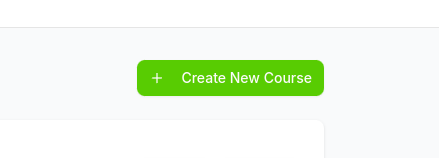
- Click on "Create New Course" button
- The Create Course modal opens.
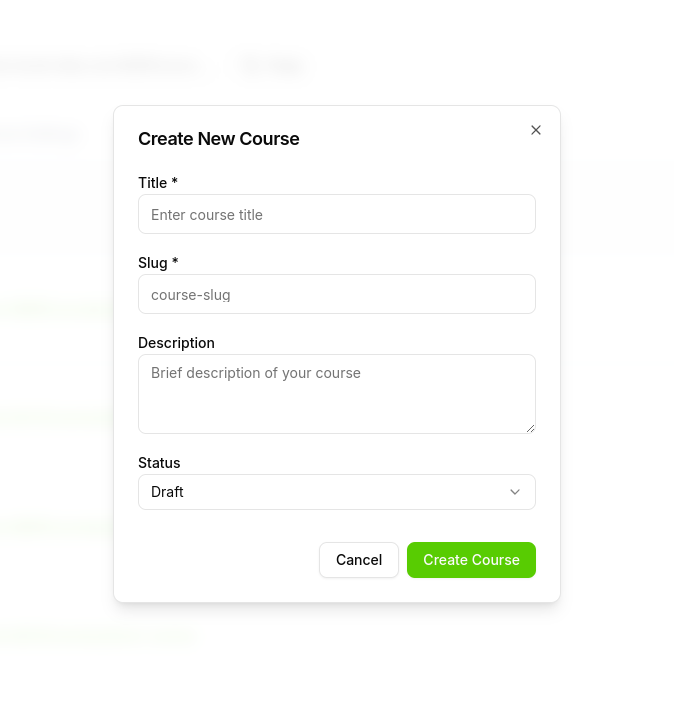
- Basic Course Information
- Course Title: Choose a clear, descriptive title
- Course Slug: A shorter URL-friendly version of the title
- Course Description: Provide a concise overview of what students will learn
- Course Status: Select either Draft or Published (see details below)
Course Statuses
LetLMS uses two statuses to control visibility and access.
Draft
Meaning: The course is not visible in catalogs. Learners can access it only if they are explicitly enrolled.
Characteristics:
- Not listed publicly anywhere in the school
- Accessible only to users who have been enrolled by an admin or via integrations
- Ideal for building, reviewing, or running limited-access cohorts
Published
Meaning: The course is visible to all users in the school. Any user can view the course and enroll (subject to school policies).
Characteristics:
- Appears in search results and catalogs within the school
- Discoverable by all authenticated users in the school
- Best for courses ready for broad access
Status Management
Draft → Published
Make the course visible to everyone in the school. Existing enrolled learners keep access; others can now discover and enroll.
Published → Draft
Hide the course from public visibility. Only already-enrolled learners keep access; new learners cannot discover or enroll unless explicitly added.
Status Change Impact
| From | To | Student Impact | Visibility |
|---|---|---|---|
| Draft | Published | Anyone in the school can view and enroll. Enrolled users keep access. | Listed in school catalogs and search |
| Published | Draft | Only already-enrolled users keep access. No new discovery or self-enrollment. | Hidden from catalogs and search |
Need Help?
For additional support with course management, contact your system administrator or contact the support team.