
Games Content
Step-by-step guide to building AI-powered gamified learning experiences
How to Create Educational Games with AI
This tutorial will guide you through creating engaging educational games that transform traditional learning into interactive, fun experiences. You'll learn how to leverage AI to generate games automatically and customize them for your specific educational goals.
Step 1: Create Your Game with AI
1.1 Access the Game Creator
- Navigate to your course in the admin dashboard
- Click "Edit Course" to open the course editor
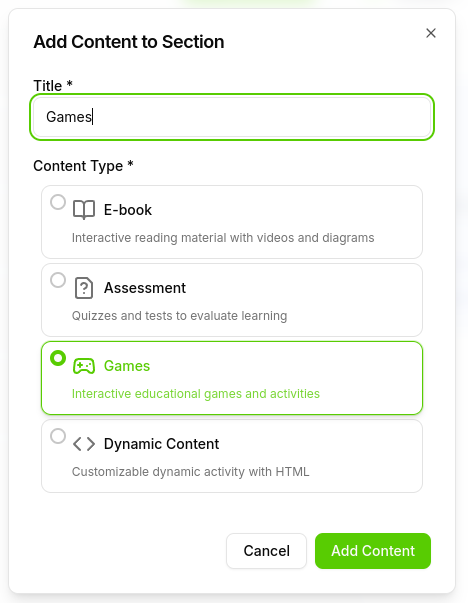
- Find the section where you want to add the game
- Click "Add Content" and select "Games"
1.2 Describe Your Game to AI
Give the AI clear instructions about what you want:
-
Provide specific learning objectives
- "Create a quiz battle about the solar system for 5th graders"
- "Make an adventure game teaching fractions and decimals"
- "Build a history timeline puzzle about World War II"
-
Specify game elements you want
- Competition level (individual vs. team)
- Difficulty progression
- Visual themes or settings
- Reward systems
2.3 Let AI Generate Your Game
- AI analyzes your requirements and educational content
- AI creates game mechanics suited to your objectives
- AI generates questions and challenges aligned with learning goals
- AI designs visual elements and user interface
Expected Result: AI has created a complete educational game based on your specifications.
Step 3: Review and Customize Your Game
3.1 Test the Generated Game
- Play through the entire game yourself first
- Check all questions and answers for accuracy
- Verify game mechanics work smoothly
- Test scoring and feedback systems
3.2 Request AI Modifications
If you need changes, ask the AI specifically:
- Adjust difficulty: "Make this easier for beginners" or "Add more challenging questions"
- Change themes: "Switch to a space theme" or "Use medieval adventure setting"
- Modify mechanics: "Add more competition" or "Make it more collaborative"
- Update content: "Focus more on problem-solving" or "Add more visual elements"
3.3 Manual Customization (Advanced)
For users with coding knowledge:
- Access the code editor within the game creation interface
- Modify styling and colors to match your preferences
- Adjust game mechanics and scoring systems
- Add custom animations and special effects
Expected Result: Your game is customized to meet your specific educational needs and preferences.
Step 5: Analyze Performance and Improve
5.1 Review Game Analytics
Access your game analytics to understand:
- Completion rates - how many students finish the game
- Time spent playing - engagement levels
- Score distributions - learning effectiveness
- Common wrong answers - areas needing reinforcement
Expected Result: You have insights into game effectiveness and can make improvements for better learning outcomes.

What's Next?
After creating your first educational game:
- Create More Games: Try different game types for various topics
- Combine with Other Content: Mix games with ebooks, assessments, and dynamic content
- Track Long-term Impact: Monitor how games affect overall learning outcomes
Congratulations! You've successfully created an AI-powered educational game that will engage your students and enhance their learning experience. Your students now have access to fun, interactive learning that makes education enjoyable and effective.